
Since the release of the TeamViewer QuickSupport app for iOS for iOS 11, it is generally possible to share your iOS screen via TeamViewer.
The screensharing allows supporters to provide the best possible support for iPhone and iPad users as they can see exactly what’s happening on the device screen and can guide users better on solving issues on their device.
Teamviewer QuickSupport on your Apple iPad or iPhone does not allow remotely controlling the device, it only allows you to share your screen.
TeamViewer 14 & Apple iOS 12 or 13
Since the launch of TeamViewer 14 and iOS 13 the screensharing solution has become even better as you can start the broadcasting with one tap inside the QuickSupport app.
REQUIREMENTS
To be able to use this feature, you must meet the following requirements:
- The iOS device (iPhone or iPad) requires iOS 12 to be installed
- Make sure, that the latest updates are installed for the TeamViewer QuickSupport app on the iOS device
Please follow these steps to use Teamviewer QuickSupport screen sharing with your Apple device:
1. On your iPhone or iPad, either go to the App Store and search for Teamviewer QuickSupport or download the latest version of TeamViewer QuickSupport
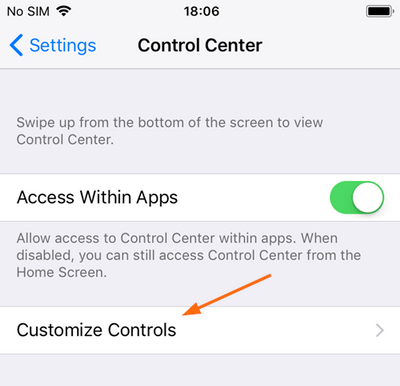
2. Once downloaded, on your iPad or iPhone open Settings > Control Center > Customize Controls
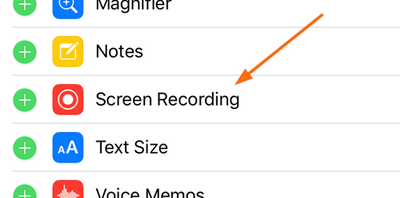
3. Add Screen Recording to be displayed in the Control Center by pressing on the green plus symbol
4. Now open the Teamviewer QuickSupport app and read your TeamViewer ID to your support person
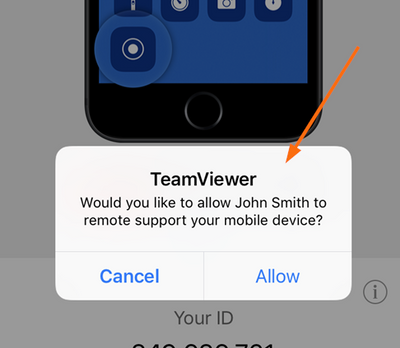
5. Confirm the connection request by clicking on Allow or reject the request by clicking Cancel
6. You will then be prompted to Start Broadcast which you will need to do, otherwise your screen will not be shared
iOS SCREEN SHARING VIDEO GUIDE
Here is the guide in video format to watch
Stop screen sharing in the iOS device
To stop screen sharing via TeamViewer on the iOS device, there are several approaches:
- Open the Control Center and tab the red blinking screen recording icon
- Tab on the title bar and select Stop in the Screen Broadcasting popup
After screen sharing is stopped, the title bar will no longer be in red.
Comments
0 comments
Please sign in to leave a comment.